

Most privacy tools ask you to trust a new middleman.
A VPN asks you to trust the VPN provider instead of your ISP. A privacy browser asks you to trust its defaults. An encrypted app asks you to trust the app, its update chain, and your own habits.
GrapheneOS is different because it goes deeper. It does not sit on top of your phone. It changes the operating system underneath it.
That is why GrapheneOS feels less like a privacy app and more like a control panel for your phone. You are not just installing another tool. You are changing how much power apps get, how Google Play behaves, how storage and contacts are exposed, how USB data works when the phone is locked, and how much trust you put into the default Android ecosystem.
That sounds dramatic, but the practical version is simple: GrapheneOS gives you more control over what your phone is allowed to do.
It is not an invisibility cloak. It does not make you anonymous. It does not erase your carrier, your phone number, your app accounts, or your behavior. But if you want a serious privacy and security upgrade that still works as a real daily phone, GrapheneOS is one of the strongest options available to normal users.
I have been interested in GrapheneOS from the practical side: setting up supported Google Pixels, thinking about how a privacy phone could work for real people, and figuring out where beginners usually get stuck. The hard part is not understanding every exploit mitigation. The hard part is choosing the right Pixel, installing it correctly, and configuring it in a way that stays private without becoming annoying.
Quick Verdict
If you want the short version:
- GrapheneOS is one of the most serious privacy/security phone setups available for regular users.
- The best new purchase in 2026 is a Google Pixel 10a — current-gen hardware, seven-year updates, and the lowest sensible entry price in the supported Pixel 10 family. Pixel 8 or newer still works if you already own one. https://grapheneos.org/faq https://support.google.com/pixelphone/answer/4457705
- Do not buy a carrier-locked Pixel unless you know it can be unlocked. Carrier variants may disable bootloader unlocking, which can block GrapheneOS installation. https://grapheneos.org/install/web
- Use the official WebUSB installer unless you are comfortable with command-line flashing. https://grapheneos.org/install/web
- Relock the bootloader after installation. This is not optional if you care about verified boot. https://grapheneos.org/install/web
- Sandboxed Google Play is the feature that makes GrapheneOS realistic for beginners. It lets you use many Play-dependent apps without giving Google Play privileged OS access. https://grapheneos.org/usage
- Network permission, Storage Scopes, Contact Scopes, user profiles, USB-C controls, Vanadium, and auto reboot are the real power features. They make the phone feel like something you control instead of something you merely carry. https://grapheneos.org/features
- GrapheneOS does not hide you from your mobile carrier. Cellular networks still involve carrier-level identifiers and trust. https://grapheneos.org/faq
- The best setup is not the most extreme setup. The best setup is the one you can actually use every day.
Why GrapheneOS Matters in 2026
The normal smartphone model is built on convenience first.
That convenience comes with a lot of default trust. You trust the OS vendor. You trust the app store. You trust app permissions. You trust Google Play services. You trust your carrier. You trust apps not to grab more data than they need. You trust that “Allow” button you pressed six months ago and forgot about.
GrapheneOS challenges that default arrangement.
It is a privacy and security-focused mobile OS based on Android, developed as a non-profit open-source project. The project focuses on stronger sandboxing, exploit mitigations, permission controls, and privacy/security features built into the OS itself. https://grapheneos.org/
The important part is not that GrapheneOS is “anti-Google” or “for paranoid people.” That is the lazy interpretation.
The better way to understand it is this:
GrapheneOS turns Android into a more controlled environment.
Apps do not automatically deserve the network. They do not automatically deserve your full contact list. They do not automatically deserve broad storage access. Google Play does not need to be fused into the base operating system. USB data does not need to stay open when the phone is locked.
This is what modern Android privacy should feel like: not a gimmick, not a marketing toggle, but a proper control layer.
What GrapheneOS Actually Is
GrapheneOS is not a launcher, VPN, app, or cosmetic Android skin.
It is a replacement operating system for supported devices. It keeps Android app compatibility but changes the security and privacy posture underneath.
The most visible difference for beginners is this: GrapheneOS does not bundle Google apps or Google Play services into the base OS. Instead, it offers optional sandboxed Google Play. Google Play services and the Play Store can be installed as regular apps inside a user or work profile, without privileged OS access. https://grapheneos.org/usage
That one design choice changes the whole feel of the phone.
On normal Android, Google Play services are deeply integrated. On GrapheneOS, they are just apps. They still provide compatibility for apps that need them, but they do not get the same privileged position inside the operating system.
For beginners, this is the sweet spot. You do not have to go full digital monk and abandon every mainstream app on day one. You can use what you need, isolate what you do not fully trust, and tighten the setup over time.
The point is not purity.
The point is control.
Best Pixel Models for GrapheneOS in 2026
GrapheneOS currently focuses heavily on supported Pixel devices. That is not random. Pixels meet hardware, firmware, bootloader, update, and security requirements that matter for a hardened OS.
GrapheneOS officially recommends Pixel 8 and newer devices because 8th-generation and later Pixels have a seven-year support guarantee from launch and hardware memory tagging support from ARMv9 CPU cores. GrapheneOS uses hardware memory tagging by default for the base OS and compatible user-installed apps. https://grapheneos.org/faq
Google’s own update policy says Pixel 8 and later phones receive seven years of OS and security updates, while Pixel 6, Pixel 7, Pixel 7a, Pixel 6a, Pixel 6 Pro, Pixel 7 Pro, and Pixel Fold receive five years. Pixel 5a and earlier no longer receive Android version updates or security updates. https://support.google.com/pixelphone/answer/4457705
| Device family | GrapheneOS status | Beginner recommendation | Notes |
|---|---|---|---|
| Pixel 10 / 10 Pro / 10 Pro XL / 10 Pro Fold / 10a | Officially listed by GrapheneOS | 10a = best new buy | 10a: longest runway at the lowest price in the Pixel 10 line |
| Pixel 9 / 9 Pro / 9 Pro XL / 9 Pro Fold / 9a | Officially listed by GrapheneOS | Excellent | Strong choice if pricing is reasonable |
| Pixel 8 / 8 Pro / 8a | Officially listed by GrapheneOS | Best value zone | Best recommendation for most beginners |
| Pixel 7 / 7 Pro / 7a | Officially listed by GrapheneOS | Acceptable if cheap | Shorter remaining support |
| Pixel 6 / 6 Pro / 6a | Officially listed by GrapheneOS | Budget only | Be careful with age, battery health, and remaining support |
| Pixel 5a and earlier | Not a good new purchase | Avoid | Google no longer provides Android/security updates |
If you are buying hardware today for GrapheneOS, default to the Google Pixel 10a. It is the sweet spot between price, support length, and install compatibility — not the flashiest Pixel, but the one that makes the most sense as a privacy daily driver you will actually keep for years.
Why the Pixel 10a is the best option (not just “a supported Pixel”)
GrapheneOS needs three things from hardware: official support, bootloader unlock on an unlocked unit, and enough years left on security updates that the project is worth the install effort. The 10a checks all three without the tax of Pro-tier hardware you do not need for privacy.
| Factor | Pixel 10a | Why it matters for GrapheneOS |
|---|---|---|
| Support window | Part of the Pixel 10 family (seven-year OS/security updates from Google) | You are not rebuilding your phone stack again in two years |
| Security hardware | 8th-generation Pixel class (memory tagging, modern Titan path) | GrapheneOS can use the stronger mitigations it expects on current Pixels |
| Price | Lowest entry in the Pixel 10 line | Privacy is already a project — overpaying for telephoto lenses does not improve sandboxed Play or Network permission |
| Size | Compact “a” form factor | Easier one-handed daily use than Pro XL phones people regret carrying |
| GrapheneOS fit | Listed on the official device matrix with the rest of Pixel 10 | Same install path as other supported Pixels: WebUSB installer, unlock, flash, relock |
What you are not buying: a status phone. You are buying a maintained, unlockable, officially supported platform for an OS you control. The 10 Pro adds cameras and screen size most privacy setups never use; the 10a gives you the same OS foundation and update contract at a saner price.
Buy unlocked. Order the carrier-unlocked / Google Store variant so OEM unlocking stays available. A carrier-locked deal that blocks the bootloader turns a GrapheneOS guide into an expensive paperweight.
If a Pixel 10a is out of budget, a used Pixel 8a or 9a is still a valid fallback — but for a new purchase in 2026, the 10a is the hardware I would hand to a beginner and say: install once, then tighten permissions for the next seven years.
Already own a Pixel 8, 8a, 9, or 9a? Do not upgrade for sport. Flash GrapheneOS on what you have if it is unlockable and healthy. The 10a recommendation is for people starting from zero.
Before You Install: The Boring Stuff That Actually Matters
The official GrapheneOS WebUSB installer is the best path for most people. The command-line install exists, but the web installer is the practical beginner route. https://grapheneos.org/install/web
The process is not hard in the “I need to be a developer” sense. It is hard in the “small mistakes waste time” sense.
The most common problems are boring:
- bad USB cable
- charge-only USB cable
- USB hub
- unsupported browser
- private/incognito mode
- Flatpak or Snap browser issues
- installing from a virtual machine
- missing Linux udev rules
fwupdinterfering with fastboot- carrier-locked phone
- forgetting to relock the bootloader
GrapheneOS specifically warns against installing from a virtual machine because USB passthrough is often unreliable. It also warns users to avoid Flatpak and Snap browser versions because they can cause installation issues. https://grapheneos.org/install/web
Supported browsers for the web install method include Chromium, Vanadium, Google Chrome, Microsoft Edge, and Brave with Shields disabled. https://grapheneos.org/install/web
If you are on Linux Mint, Debian, or Ubuntu, the official docs mention installing android-sdk-platform-tools-common for udev rules. They also mention that fwupd can interfere with fastboot, and suggest stopping it with:
sudo systemctl stop fwupd.serviceThat is exactly the kind of tiny detail that can make a beginner think the whole install is broken when the real issue is just the local setup.
If you are pairing a privacy phone with home-lab automation, start with our beginner automation stack guide.
GrapheneOS Installation Flow
This is not a replacement for the official docs. Use the official installer when doing the actual flash.
But the beginner-level flow looks like this:
| Step | What you do | Why it matters |
|---|---|---|
| 1 | Buy a supported, unlockable Pixel (10a if buying new) | Carrier-locked devices can block installation |
| 2 | Update stock Android first | GrapheneOS recommends updating the device before installing |
| 3 | Back up anything important | Unlocking and flashing wipes the phone |
| 4 | Use a proper USB data cable | Bad cables are a common failure point |
| 5 | Use a supported browser | The installer depends on WebUSB |
| 6 | Enable Developer Options | Required to reach OEM unlocking |
| 7 | Enable OEM unlocking | Required before unlocking the bootloader |
| 8 | Boot into Fastboot mode | The installer needs the device paused in Fastboot |
| 9 | Unlock the bootloader | This allows flashing and wipes the phone |
| 10 | Download and flash GrapheneOS | This replaces the stock OS |
| 11 | Relock the bootloader | Required for full verified boot |
| 12 | Disable OEM unlocking after setup | Recommended during first setup |
| 13 | Verify installation if desired | Use verified boot/attestation for assurance |
Relocking the bootloader matters because it enables full verified boot and prevents fastboot from being used to flash, format, or erase partitions. https://grapheneos.org/install/web
Do not skip that step because some random tutorial made it look optional.
The install is not finished when the OS boots. The install is finished when the phone is flashed, the bootloader is locked again, OEM unlocking is disabled, and you understand what you just changed.
When setup completes and the phone reboots, you should see the GrapheneOS boot screen — the hexagonal logo on a black display. That is your first confirmation the flash worked before you move on to daily-driver configuration.
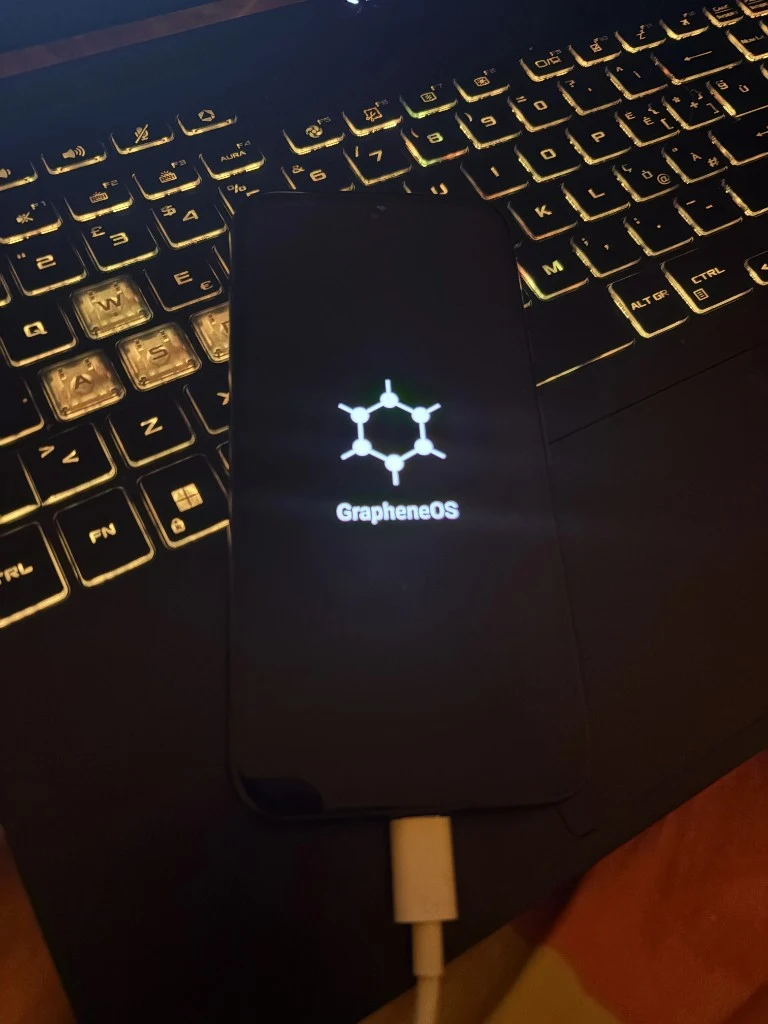
First boot after a successful flash — GrapheneOS logo on a Pixel connected over USB during setup.
Post-Install Setup: Make It Usable Before You Make It Extreme
A mistake beginners make with privacy tools is trying to go maximum-hardcore on day one.
That usually ends badly.
You install GrapheneOS, refuse every convenience feature, avoid Google Play completely, break half your apps, get annoyed, and go back to stock Android.
A better approach is to start with a usable baseline and tighten it over time.
Recommended beginner setup:
- Set a strong PIN or password.
- Enable PIN scrambling if you want extra shoulder-surfing protection.
- Review auto reboot.
- Review USB-C port controls.
- Keep system updates enabled.
- Use Vanadium as your default browser.
- Install only essential apps first.
- Decide whether you need sandboxed Google Play.
- Use Network permission for apps that should not need internet.
- Use Storage Scopes instead of broad storage permission.
- Use Contact Scopes instead of giving apps your full address book.
- Create a separate profile for Google-dependent or messy apps.
This is where GrapheneOS starts to feel powerful.
Not because it flashes a privacy badge on the screen, but because you start seeing choices normal phones hide from you.
The Features That Make GrapheneOS Feel Like a Control Panel
Sandboxed Google Play
This is the feature that makes GrapheneOS realistic for normal people.
GrapheneOS lets you install Google Play services and the Play Store as regular apps inside a specific user or work profile. Only apps in that same profile can use them, and they do not receive special privileged OS access. https://grapheneos.org/usage
That means you can still run many mainstream apps without letting Google Play sit inside the base OS like a permanent landlord.
For beginners, this is huge.
You can have a cleaner base system, then create a separate profile for the apps that need Google Play. Banking, maps, rideshare, delivery apps, Instagram, WhatsApp, or other compatibility-heavy apps can live there if needed.
This is not perfect privacy. It is controlled compromise.
That is exactly what most people need.
Network Permission
GrapheneOS adds a Network permission toggle that can block both direct and indirect access to available networks. It even guards localhost, which helps prevent apps from using the device-local network to communicate between profiles. https://grapheneos.org/features
This is one of the features that makes you wonder why phones were not always this direct.
Some apps need the internet. Some do not.
A calculator does not need network access. A flashlight does not need network access. A file viewer probably does not need network access. On GrapheneOS, you can actually treat that as a permission decision instead of a vague hope.
It feels like a firewall mentality built into the app model.
Storage Scopes
Storage Scopes is one of the cleanest beginner-friendly privacy features.
Instead of giving an app broad storage permissions, GrapheneOS can make the app think it has the storage permissions it requested while only allowing access to files and folders you specifically choose. https://grapheneos.org/features
That matters because many apps ask for more storage access than they should need.
With Storage Scopes, you can keep compatibility without handing over the whole drawer.
Contact Scopes
Contact Scopes does the same kind of thing for contacts.
By default, it can make the contact list appear empty. Then you can grant access to specific contacts or groups instead of giving an app the entire address book. https://grapheneos.org/features
This is one of those features that sounds small until you think about how many apps casually ask for contacts.
Your contacts are not just your data. They are other people’s data too.
GrapheneOS makes that harder to forget.
USB-C Port Control
GrapheneOS includes USB-C port controls designed to reduce attack surface when the device is locked. The default is “Charging-only when locked,” which blocks new USB data connections after the device is locked. https://grapheneos.org/features
That is not a flashy feature, but it is exactly the kind of thing a serious phone should have.
Phones are not just attacked over the internet. Physical access matters. USB matters. Locked-state behavior matters.
GrapheneOS treats that like an operating system problem, not an afterthought.
Vanadium
Vanadium is GrapheneOS’ hardened Chromium-based browser and WebView. It is the default browser and OS WebView implementation, with privacy and security hardening compared to standard mobile Chromium. https://grapheneos.org/features
Vanadium is not magic. Browser fingerprinting is still complicated. But it gives GrapheneOS a stronger default browser posture without asking beginners to build a fragile extension stack.
That is important because many “privacy browser” setups become worse when users install ten extensions, change every setting, and accidentally make themselves more fingerprintable.
Good defaults matter.
Auto Reboot
Auto reboot restarts a locked device after a configured period so data returns to a stronger at-rest state. GrapheneOS says the default timer is 18 hours, and users can set it between 10 minutes and 72 hours or turn it off. https://grapheneos.org/features
This is another quiet feature that makes sense once you understand it.
A phone that has been unlocked and running for days is not in the same security state as a freshly rebooted locked phone. Auto reboot helps reduce that exposure without requiring the user to remember.
Not glamorous. Useful.
User Profiles: The Clean Way to Separate Your Life
User profiles are where GrapheneOS becomes more than a hardened Android install.
They let you separate parts of your digital life into different spaces.
A simple beginner structure could look like this:
| Profile | What goes inside | Purpose |
|---|---|---|
| Owner profile | Settings, Vanadium, password manager, Signal, phone/SMS if needed | Clean base profile |
| Google-dependent profile | Sandboxed Google Play, Play Store, Google Maps, WhatsApp, Instagram, banking apps if needed | Compatibility zone |
| Work/research profile | Work apps, testing tools, cybersecurity learning apps, automation apps | Controlled experimentation |
This is not about pretending profiles make you invisible. They do not.
If you log into the same accounts everywhere, you are still connecting activity to the same identity. But profiles help reduce casual data mixing and keep noisy apps away from your cleaner setup.
That is a practical win.
Daily Driver App Setup
For a beginner, keep the first setup boring.
Start with:
- Vanadium for browsing
- Signal or another end-to-end encrypted messenger
- a password manager
- essential banking apps
- maps if needed
- sandboxed Google Play only if needed
- a VPN only if you understand what it does and does not do
Do not install 80 apps immediately.
Install what you use, then review permissions as you go. That is how you turn GrapheneOS from “cool project” into a real daily phone.
A good privacy setup is not the one with the most apps removed. It is the one where every app has a reason to exist.
What Works Well
GrapheneOS works because it makes privacy feel operational.
You are not just reading about security. You are touching it every time an app asks for network access, contacts, storage, sensors, or Google Play compatibility.
The strongest parts are:
- Clean base OS: Google apps are not bundled into the operating system by default. https://grapheneos.org/features
- Sandboxed Google Play: Play services can run as regular sandboxed apps instead of privileged system components. https://grapheneos.org/usage
- Network permission: You can block network access at the app level. https://grapheneos.org/features
- Storage Scopes: You can avoid broad storage access while keeping app compatibility. https://grapheneos.org/features
- Contact Scopes: You can avoid giving apps your full address book. https://grapheneos.org/features
- USB-C controls: The phone can block USB data while locked. https://grapheneos.org/features
- Vanadium: The default browser/WebView is hardened rather than left as a generic default. https://grapheneos.org/features
- Frequent releases: The release page shows active builds across supported Pixel families, including 2026050900 builds for Pixel 8, Pixel 9, Pixel 10, Pixel Fold, Pixel Tablet, and others. https://grapheneos.org/releases
The premium feeling is not visual. It is architectural.
GrapheneOS feels like a phone where the owner gets more authority.
What Can Be Annoying
GrapheneOS is strong, but it is not frictionless.
The annoying parts:
- Some apps expect Google Play services.
- Some banking apps may behave unpredictably.
- Push notifications may require a Google Play services battery optimization exception. https://grapheneos.org/usage
- Android Auto requires specific sandboxed Google Play setup. https://grapheneos.org/usage
- Carrier features can vary by carrier and region.
- Installation can fail for boring cable/browser/USB reasons.
- More control means more decisions.
- Over-compartmentalizing too early can make the phone irritating to use.
That last point matters.
Some people install GrapheneOS and immediately try to create a perfect privacy architecture. Five profiles, no Google Play, strict permissions everywhere, every app isolated, every workflow broken.
Then they burn out.
Do not do that.
Start usable. Then tighten.
What GrapheneOS Does Not Magically Solve
GrapheneOS is powerful because it reduces unnecessary trust.
It does not remove all trust.
If you connect to a cellular network, your carrier still has subscriber/device-level visibility. GrapheneOS says cellular networks involve inherently insecure protocols and many trusted parties, and that connecting to a carrier inherently identifies the device/subscriber to the carrier and parties with administrative access. https://grapheneos.org/faq
If you use legacy calls and SMS, you are still trusting the carrier/network. GrapheneOS recommends avoiding legacy calls and texts for secure communication and using HTTPS or end-to-end encrypted apps such as Signal for protecting data in transit. https://grapheneos.org/faq
If you log into the same Google, Instagram, WhatsApp, bank, delivery, and shopping accounts, those services still know who you are.
If you use a VPN, you are shifting trust. You are not becoming anonymous.
If you reuse passwords, ignore phishing, install random APKs, and give every app every permission, GrapheneOS will not save you from yourself.
A privacy phone with sloppy habits is still sloppy.
The better mindset is simple:
Reduce exposure. Reduce unnecessary trust. Separate what should be separated. Stop pretending one tool solves everything.
2026 GrapheneOS Context
GrapheneOS is not sitting still.
The official release page shows active 2026050900 builds across modern Pixel families, including Pixel 10, Pixel 9, Pixel 8, Pixel Fold, Pixel Tablet, Pixel 7, and Pixel 6 devices. https://grapheneos.org/releases
Google’s May 2026 Pixel Update Bulletin was published on May 5, 2026 and covers security vulnerabilities and functional improvements affecting supported Pixel devices. https://source.android.com/docs/security/bulletin/pixel/2026/2026-05-01
This matters because GrapheneOS depends on supported hardware, firmware, drivers, and security patch flow. A privacy OS is not only about interface features. It is about the whole device stack.
The other major 2026 development is Motorola’s announced partnership with the GrapheneOS Foundation. Motorola said the companies will collaborate on future devices engineered with GrapheneOS compatibility. https://motorolanews.com/motorola-three-new-b2b-solutions-at-mwc-2026/
Do not read that as “buy any Motorola phone today.” That is not what it means.
For beginners, Pixels remain the practical path unless and until GrapheneOS officially supports future Motorola devices. But the partnership matters because it suggests GrapheneOS may not stay Pixel-centered forever.
Who Should Use GrapheneOS
GrapheneOS makes sense if you are:
- privacy-conscious but still need a usable phone
- a developer or technical learner
- a student who wants stronger digital hygiene
- a founder or business owner managing sensitive accounts
- a journalist, researcher, or activist with legitimate privacy needs
- a crypto user who wants better operational discipline
- someone tired of invasive defaults
- someone who likes controlling their own infrastructure
- someone willing to learn basic setup discipline
The best GrapheneOS user is not the most paranoid person.
The best GrapheneOS user is someone who understands that a phone is infrastructure.
Who Should Avoid GrapheneOS
GrapheneOS may not be right for you if:
- you want every app to behave exactly like stock Android
- you hate troubleshooting
- you cannot risk banking-app issues
- you are not willing to check device support before buying
- you expect privacy without changing habits
- you want maximum convenience over control
- you think GrapheneOS makes SIM tracking impossible
- you plan to follow random outdated install videos instead of official docs
There is no shame in staying on stock Android or iOS if that fits your life better.
A security setup you abandon after one week is not a good setup.
Common Mistakes to Avoid
- Buying an old unsupported Pixel. Pixel 5a and earlier no longer receive Android/security updates from Google. https://support.google.com/pixelphone/answer/4457705
- Buying a carrier-locked Pixel. Carrier variants may disable bootloader unlocking. https://grapheneos.org/install/web
- Using a charge-only cable. The installer needs a real USB data connection.
- Using the wrong browser. Stick to supported browsers listed by GrapheneOS. https://grapheneos.org/install/web
- Trying to install from a VM. USB passthrough is unreliable. https://grapheneos.org/install/web
- Forgetting that unlocking wipes the device. Back up first.
- Forgetting to relock the bootloader. Verified boot depends on this. https://grapheneos.org/install/web
- Keeping OEM unlocking enabled after setup. GrapheneOS recommends disabling it during first setup. https://grapheneos.org/install/web
- Putting every app in the Owner profile. Use profiles if you want separation.
- Giving full contacts/storage access when scopes would work. Use Contact Scopes and Storage Scopes where possible. https://grapheneos.org/features
- Expecting GrapheneOS to hide carrier activity. It does not.
- Confusing privacy with anonymity. They overlap, but they are not the same thing.
QuBrite Field Notes
The biggest lesson from setting up GrapheneOS is that privacy is less dramatic than people make it sound.
The useful part is not feeling like a spy.
The useful part is opening app settings and realizing you can actually say no.
No network for this app.
No full contacts access.
No broad storage access.
No Google Play in the base OS.
No USB data while locked.
No reason to give every app the whole house key.
That is the real appeal.
GrapheneOS makes your phone feel less like a sealed consumer product and more like a system you are allowed to manage.
If I were setting one up for a beginner in 2026, I would not start with the most extreme configuration. I would start with a Pixel 10a (or an existing unlockable Pixel 8+), install GrapheneOS properly, relock the bootloader, use Vanadium, install Signal, use a password manager, set up sandboxed Google Play only where needed, and separate the messy apps into another profile.
Then I would tighten permissions over time.
That is the difference between a usable privacy phone and a weekend experiment.
FAQ
Is GrapheneOS good for beginners?
Yes, if the beginner is willing to follow instructions carefully. The official WebUSB installer makes installation approachable, but users still need a supported unlockable Pixel, a proper USB data cable, a supported browser, and the discipline to relock the bootloader after flashing. https://grapheneos.org/install/web
Which Pixel should I buy for GrapheneOS in 2026?
For a new purchase, the best choice is a Google Pixel 10a: current Pixel 10 hardware, seven-year updates, and the lowest price in the supported line. Any unlockable Pixel 8 or newer still works if you already own one. GrapheneOS recommends 8th-generation and later Pixels because of longer support and stronger hardware security features. https://grapheneos.org/faq https://support.google.com/pixelphone/answer/4457705
Can I use Google Play apps on GrapheneOS?
Yes. GrapheneOS supports optional sandboxed Google Play. Google Play services and the Play Store can be installed as regular apps inside a specific user or work profile, without special privileged OS access. https://grapheneos.org/usage
Does GrapheneOS work with banking apps?
Some banking apps work, some may require sandboxed Google Play, and some may behave unpredictably depending on their anti-tampering checks or compatibility expectations. Test your essential banking apps before relying on GrapheneOS as your only phone.
Does GrapheneOS make me anonymous?
No. GrapheneOS improves privacy and security, but it does not make you anonymous. Your carrier, phone number, app accounts, payment methods, browser behavior, and login patterns can still identify you.
Can my carrier still track me on GrapheneOS?
Yes. If you use a SIM or connect to a cellular network, your carrier still has subscriber/device-level visibility. GrapheneOS reduces trust where it can, but it does not make cellular networks private or anonymous. https://grapheneos.org/faq
Is installing GrapheneOS hard?
It is manageable if you follow the official web installer carefully. Most failures come from simple issues: bad cable, unsupported browser, carrier-locked phone, VM install attempts, Linux fastboot problems, or skipping bootloader relocking. https://grapheneos.org/install/web
Should I buy a phone with GrapheneOS preinstalled?
Only from a source you trust, and only if you understand how to verify the installation. For most beginners, buying a supported unlockable Pixel and following the official installation process is cleaner.
Does GrapheneOS support Motorola phones now?
Motorola announced a long-term partnership with the GrapheneOS Foundation in March 2026 for future devices engineered with GrapheneOS compatibility. That does not mean random current Motorola phones are a normal beginner install path. https://motorolanews.com/motorola-three-new-b2b-solutions-at-mwc-2026/
Is GrapheneOS better than normal Android for privacy?
For users who care about app permissions, Google Play separation, profiles, exploit mitigations, and reducing default trust, yes. For users who want maximum convenience with zero setup decisions, stock Android or iOS may be easier.
Final Verdict
GrapheneOS is not magic.
That is why it is interesting.
It does not sell invisibility. It gives you controls. Real ones.
Sandboxed Google Play. Network permission. Storage Scopes. Contact Scopes. User profiles. USB-C lock-state controls. Vanadium. Auto reboot. Verified boot. A cleaner base OS. A more serious relationship with app permissions.
This is what a privacy phone should feel like: not paranoid, not theatrical, not full of fake promises.
Just harder to abuse by default.
For most beginners in 2026, the best path is straightforward:
- Buy a supported unlockable Pixel — Pixel 10a for a new 2026 purchase, or use an existing Pixel 8+.
- Use the official GrapheneOS WebUSB installer.
- Relock the bootloader.
- Disable OEM unlocking after setup.
- Use Vanadium, Signal, and a password manager.
- Install sandboxed Google Play only where needed.
- Put messy apps into a separate profile.
- Tighten permissions over time.
That is the practical version of a privacy phone.
Not an invisibility cloak.
A control panel in your pocket.
Sources / Further Reading
- https://grapheneos.org/faq
- https://grapheneos.org/features
- https://grapheneos.org/usage
- https://grapheneos.org/install/web
- https://grapheneos.org/releases
- https://support.google.com/pixelphone/answer/4457705
- https://source.android.com/docs/security/bulletin/pixel/2026/2026-05-01
- https://motorolanews.com/motorola-three-new-b2b-solutions-at-mwc-2026/
QuBrite Dispatch
Operator-focused playbooks, system teardowns, and tech reviews. One email, weekly.
Newsletter launching soon. Subscribe via RSS in the meantime.